Onboarding, step by step
Elevay reads your website, asks you to confirm what it understood, sizes your market, then builds your account list. Here is each screen and what happens behind it.
What it is
Onboarding is one guided session. You give Elevay your website, it researches your company, and you confirm or correct what it found in 16 short questions. At the end, your Knowledge is filled in, your market is sized and Elevay starts building your list of target accounts, your TAM.
Nothing is sent to anyone during onboarding, and nothing is bought on your behalf until you press Build my TAM.
Who can use it
The person who creates the workspace becomes its admin and runs the onboarding. Saving onboarding answers needs the admin role: a teammate invited as member or viewer joins a workspace that is already set up.
How it works
Onboarding writes straight into the product. There is no separate onboarding profile that gets copied later: each answer you confirm is saved at once in the place where you will find it afterwards.
| What you confirm | Where it is saved |
|---|---|
| Your company, what you sell | Knowledge › Company research and Offers |
| Company type, industries, size, locations, how your customers sell | Knowledge › ICP & tier scoring |
| Who buys from you | Knowledge › Personas |
| What they use instead of you | Knowledge › Competitors |
| Who Elevay never contacts, what rules a company out | The workspace Never contact list and the ICP Disqualifiers |
| What makes an account worth contacting now | Knowledge › Signals |
| What Elevay does on its own | Settings › Autonomy |
When you start, Elevay creates your first ICP profile in a paused state. A paused profile searches nothing and spends nothing. It is released only when you press Build my TAM, which is why you can go back and change any answer without cost until then.
Before Build my TAM, a reload takes you back to the first screen, but every answer you already confirmed is kept. After Build my TAM, a reload reopens the Your market is mapped screen.
Step 1: give Elevay your website
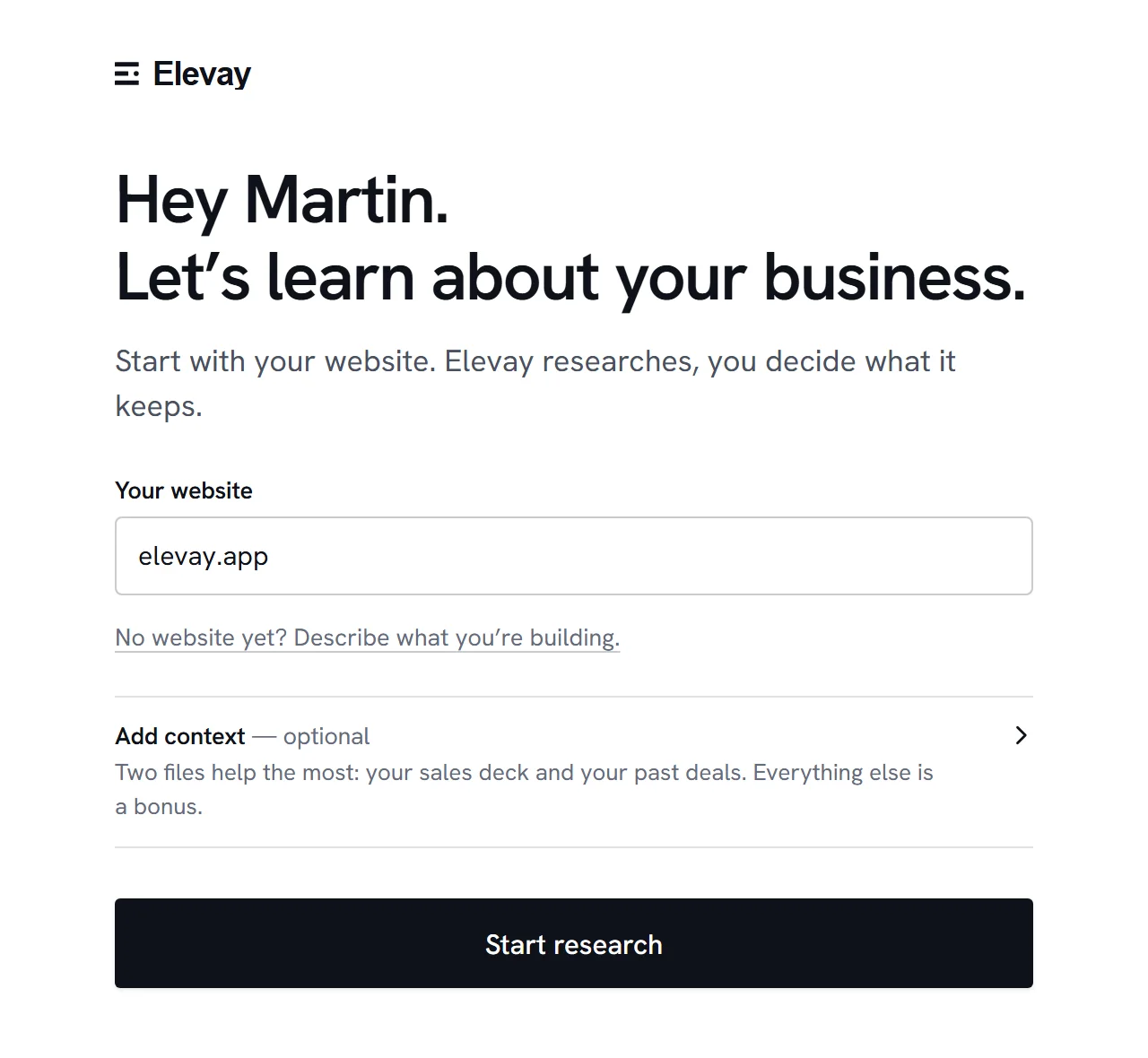
Check Your website.
Elevay prefills it from your email domain. Correct it if you sell under another domain. If you have no site yet, choose No website yet? Describe what you're building. and write a few lines instead.
Open Add context if you have files at hand.
Two files help the most. Your sales deck accepts a PDF, PowerPoint or Keynote file up to 20 MB. Your past deals accepts a CSV up to 5 MB with one row per deal (company, website, amount and result); a template is offered for download. You can also add Useful links and a free note under Anything Elevay should know.
Press Start research.
Elevay reads the public pages of your site and opens the research screen. The deck, links and notes are stored as Knowledge sources; the deals file feeds the closed deals of your ICP.
Every answer the files would give can also be given by hand in the next step. Skip Add context if it slows you down; you can add the same material later in Knowledge.
Step 2: confirm what Elevay understood
The research screen has two parts. On the left, Elevay narrates what it is doing and keeps a list of four to-dos. In the centre, your Knowledge graph grows as each topic is confirmed. Elevay stops 16 times to ask you a question, grouped in four to-dos.
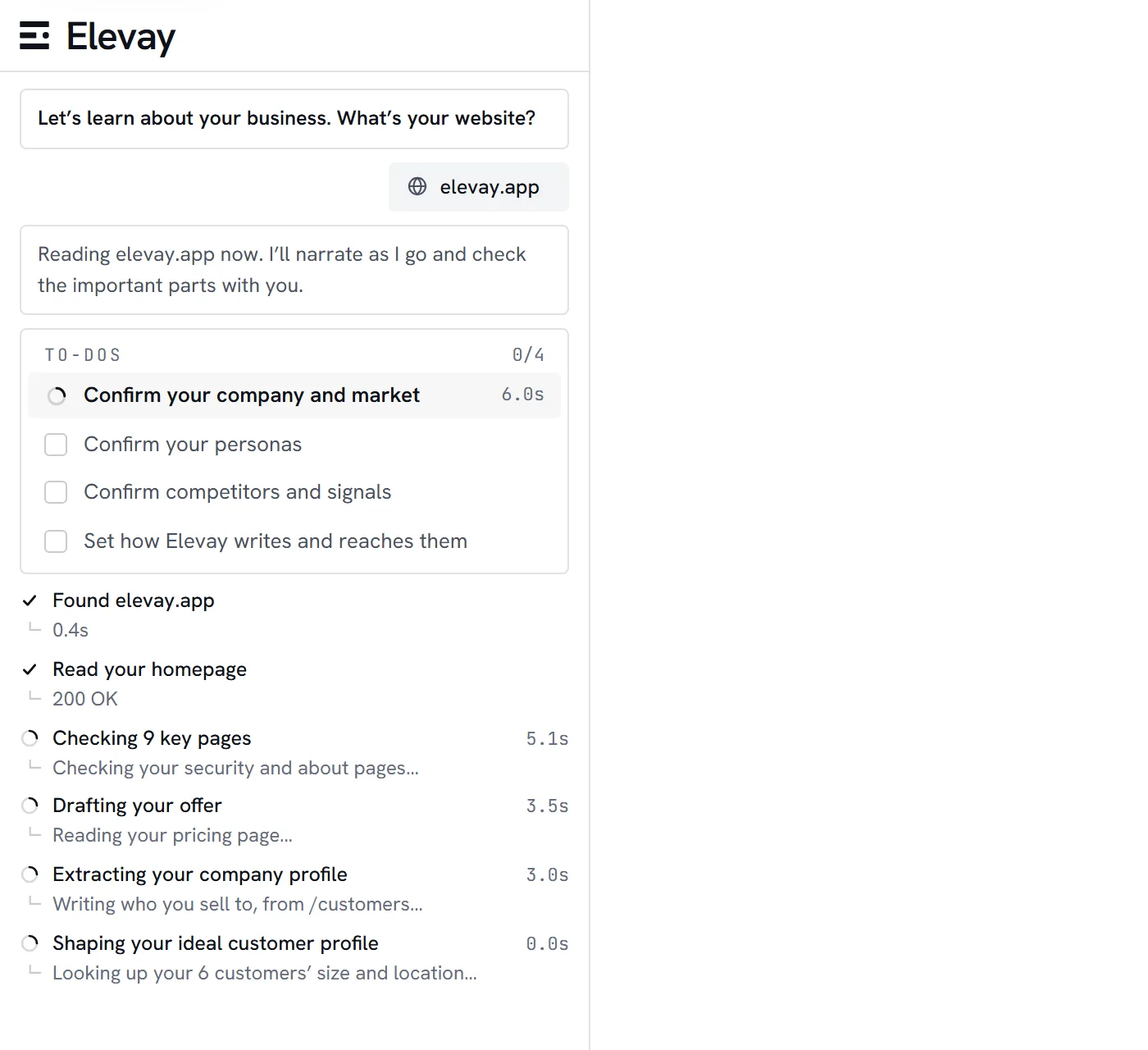
| To-do | Questions |
|---|---|
| Confirm your company and market | Is this your company, Company type, Industries, Industries Elevay skips, Company size, How your customers sell, Locations |
| Confirm your personas | Who buys from you |
| Confirm competitors and signals | What they use instead of you, Who Elevay never contacts, What rules a company out, What makes an account worth contacting now |
| Set how Elevay writes and reaches them | What Elevay can do today, What a message may claim, What Elevay never does, What Elevay does on its own |
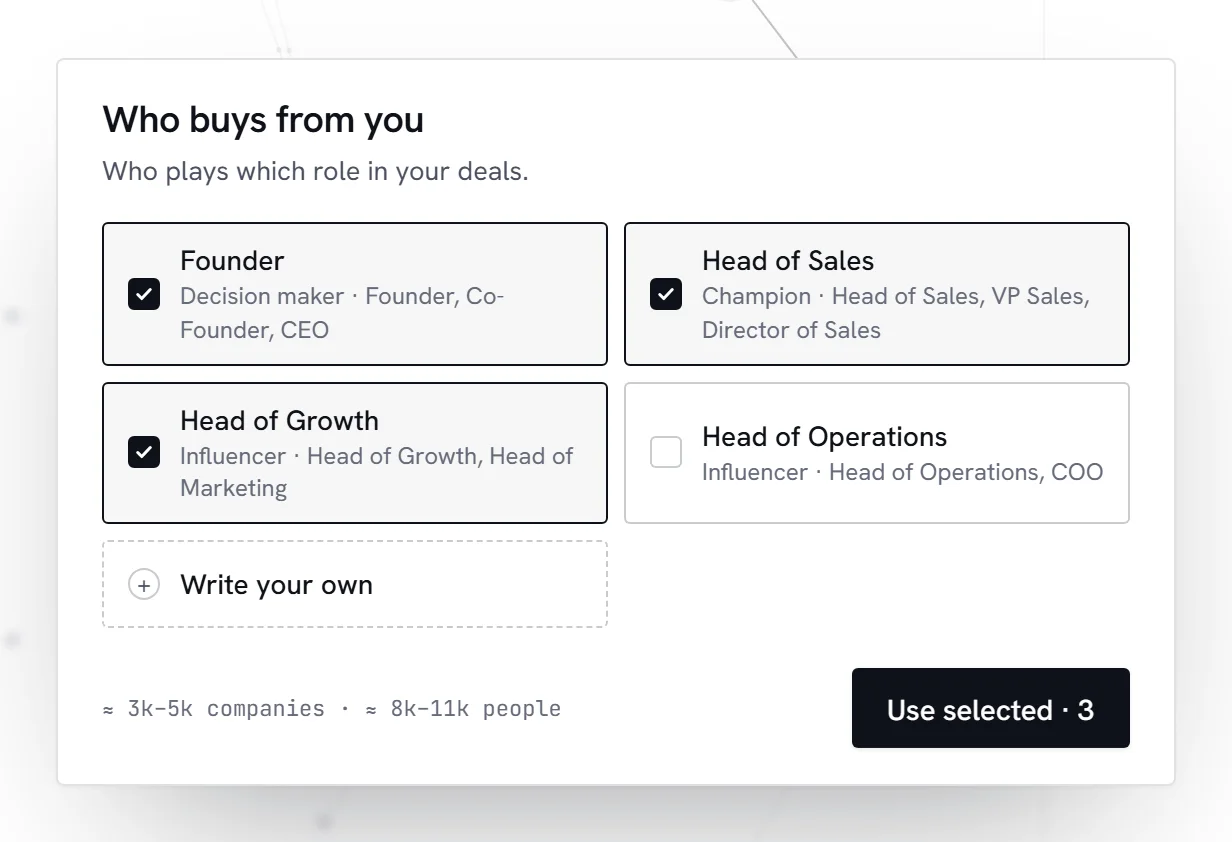
Read the proposals.
They come from your site and the context you added. Tick the ones that are right and untick the others.
Add what is missing with Write your own.
Your own entry counts exactly like a proposed one.
Confirm with the button at the bottom right.
Its label says what it will do, for example Use selected · 3. The answer is saved at once. If a save fails you see Not saved. Try again. and nothing moves on until it has gone through.
If the research could not read your site, the windows still open: they are simply empty and you fill them in yourself. Back returns to the previous question at any time.
Step 3: check the recap and the cost
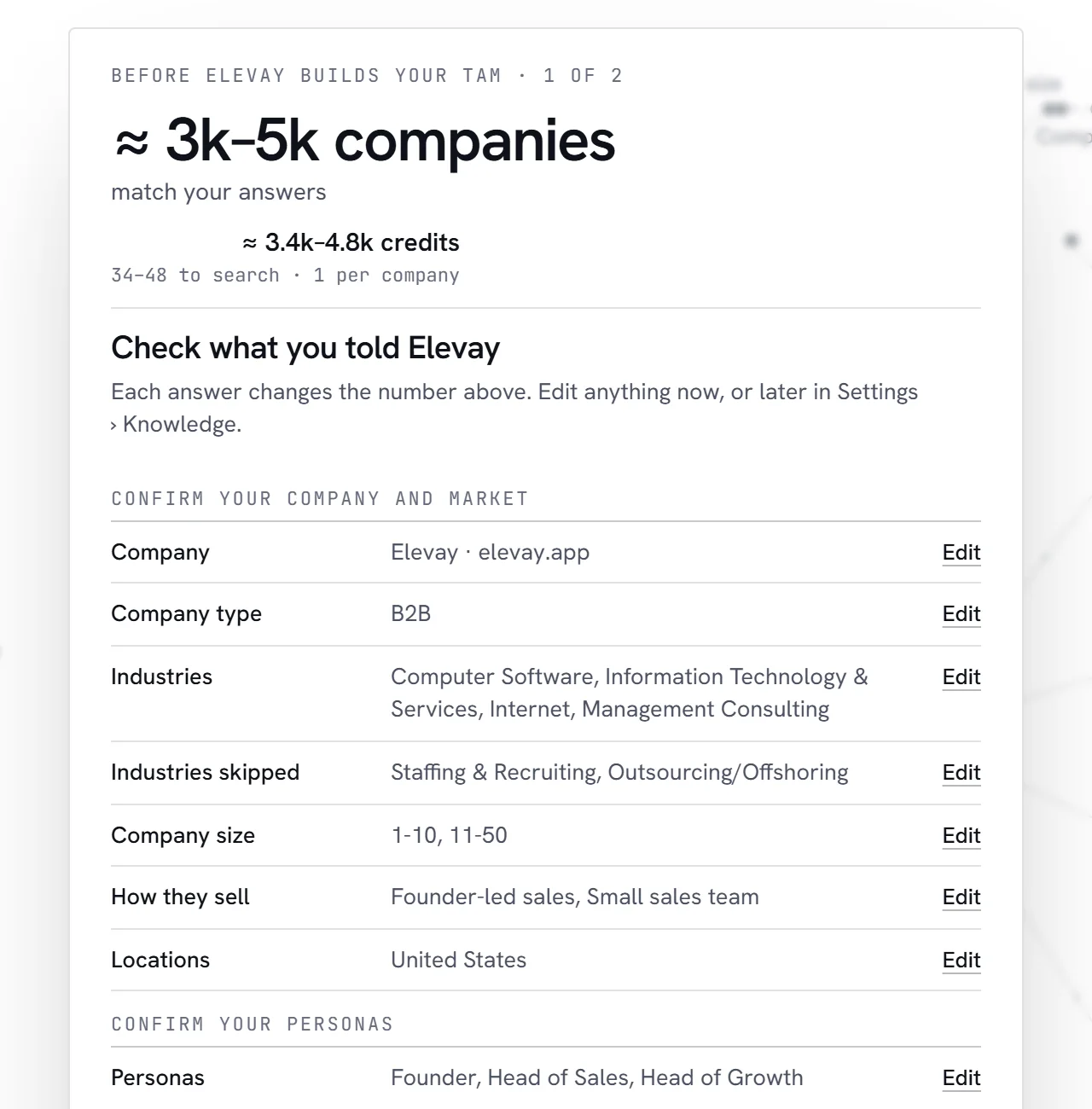
The recap comes in two parts. 1 of 2 shows how many companies match your answers, what building the list will cost in credits, and every answer with an Edit link. 2 of 2, A preview of your TAM, shows four real companies that match.
- The company count is real. Elevay queries its company data with your criteria to count the market. This count costs 1 credit.
- Building the list costs 1 credit per 100 companies searched, plus 1 credit per company kept. The recap shows the estimate as a range before you commit.
- Contacts are not bought here. People are revealed later and only for accounts you approve: 1 credit per email, 8 with a phone number.
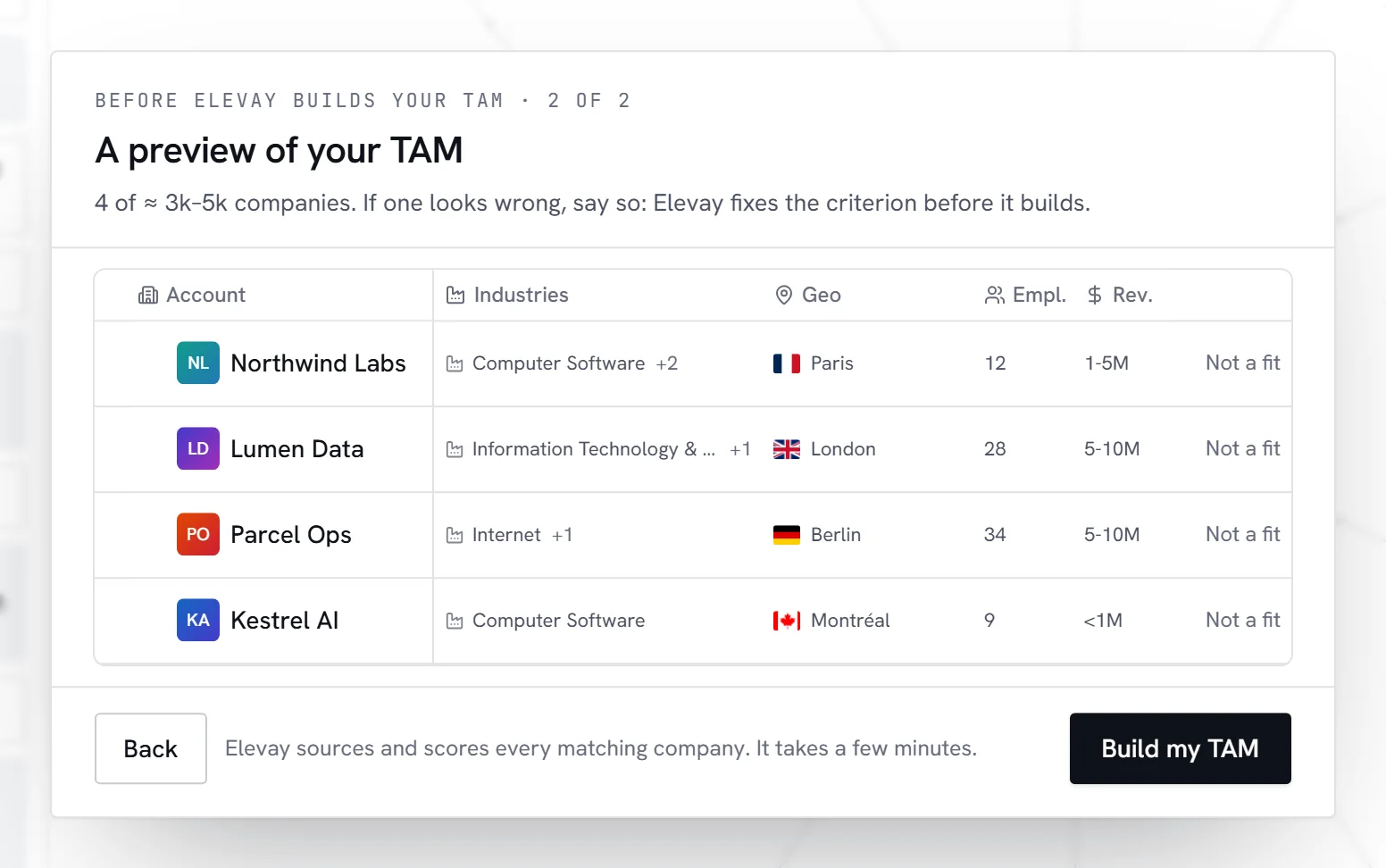
Read the four companies.
Ask yourself whether you would be glad to see each one in your pipeline.
If one is wrong, press Not a fit on its row.
Elevay reopens the Industries question so you can fix the criterion, instead of hiding one company and keeping the cause.
Press Build my TAM.
This releases your ICP profile from its paused state. From this point Elevay searches and spends credits. You land on Your market is mapped.
Elevay's guideline for a workable market is 500 to 5,000 companies. If your count falls well outside it, use Edit on the recap to tighten or loosen a criterion before building.
Step 4: connect your tools
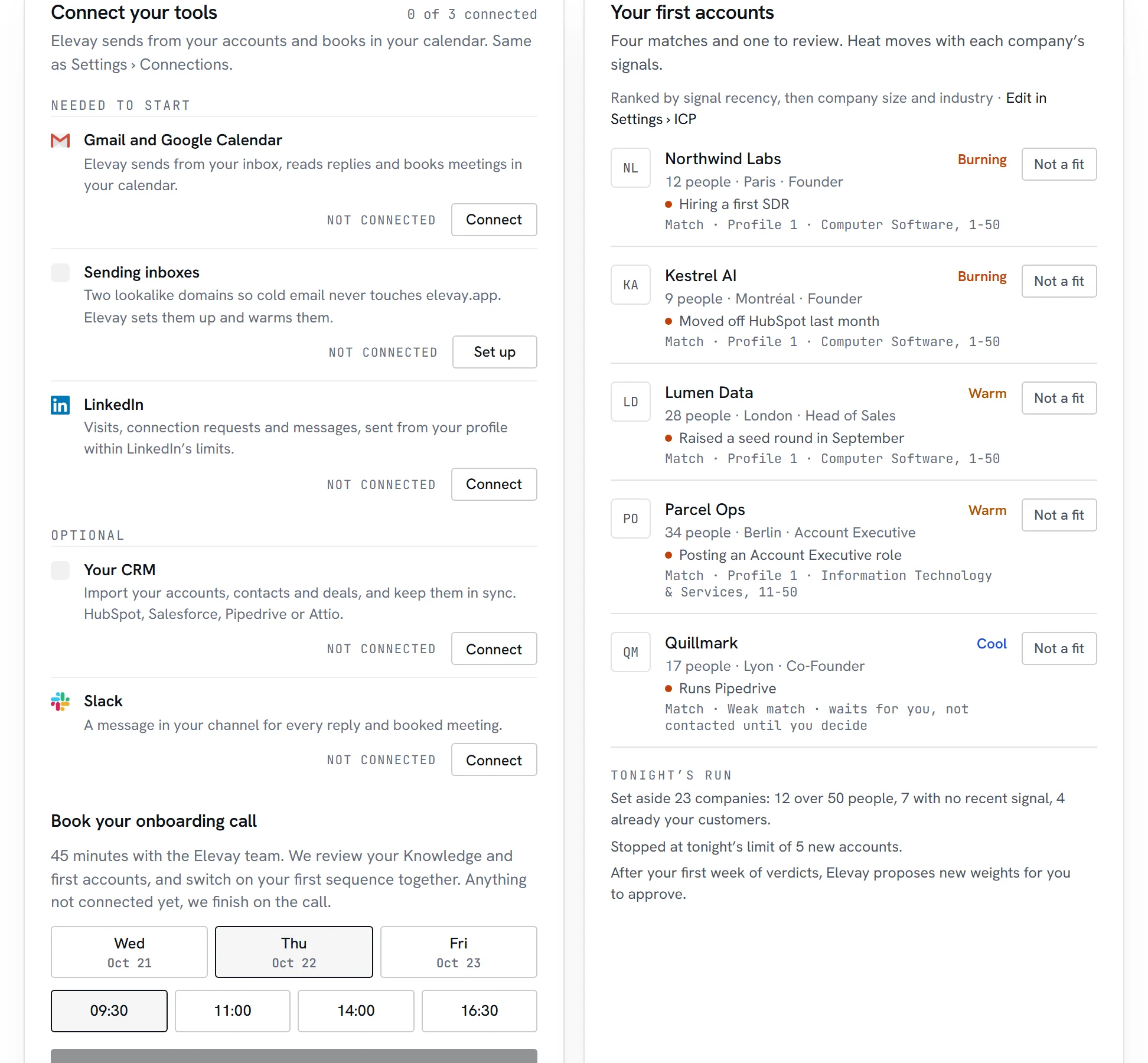
Your market is mapped summarises what Elevay now knows (what you sell, who you sell to, who you are up against, your proof, your market size and what is still missing) and asks for the connections it needs to work.
| Connection | Why Elevay needs it | Needed to start |
|---|---|---|
| Inbox and calendar | To read replies, send from your address and book meetings in your calendar | Yes |
| Sending inboxes | Separate domains for cold email, so outreach never touches your main domain. Elevay sets them up and warms them | Yes |
| Visits, connection requests and messages, sent from your profile within LinkedIn's limits | Yes | |
| Your CRM | To import your accounts, contacts and deals and keep them in sync | No |
| Slack | A message in your channel for every reply and booked meeting | No |
Each Connect button opens the matching flow of Settings › Connections in a new tab. Come back to the onboarding tab when it is done.
On the right, Your first accounts shows up to five companies. Not a fit asks for a reason (too small, too large, wrong industry, already a customer, wrong country) and adds the company's domain to your Never contact list. Undo removes it again.
Step 5: book the onboarding call, then finish
Pick a day and a time under Book your onboarding call, if you want one.
It lasts 45 minutes with the Elevay team. You review your Knowledge and your first accounts together and switch on your first sequence. Anything not connected yet is finished on the call. The Elevay team confirms the time with you by email.
Choose Continue.
Booking is optional: the rest of the setup does not wait for it.
Follow the short tour.
Elevay walks you through how it finds customers and how it reaches them, then offers Create my first sequence.
Press Create my first sequence.
Onboarding is marked complete and you land on Accounts, where the first build of your TAM starts.
Troubleshooting
"Couldn't start. Try again."
The first screen could not create your workspace profile. Press Start research again. If the message stays, check that the website is a public address (not an intranet or a local address) and try once more.
"This deck is over 20 MB. Export a lighter PDF."
Export the deck as a PDF with compressed images, or remove video slides, then upload it again. The past deals file has its own limit of 5 MB: keep one row per deal.
"Couldn't count your market. Try again."
The market count did not come back. Press See matching accounts again. If you see Add at least one company filter to size your market. instead, your answers do not narrow the market at all: go back and set at least an industry, a size or a location.
"Couldn't start your TAM. Try again."
Your profile could not be released. Press Build my TAM again; nothing has been spent by the failed attempt.
The questions open empty
The research could not read your site, often because it blocks automated readers or needs a login. Answer the questions by hand with Write your own: the result is the same.
Common questions
- Can I change my answers after onboarding?
- Yes. Every answer lives in Knowledge or Settings › Autonomy and can be edited there at any time. See the section Teach Elevay your business.
- Does onboarding send anything to my prospects?
- No. Onboarding builds knowledge and a list. Sending needs connected inboxes, a sequence and your approval.
- What does onboarding cost in credits?
- Counting your market costs 1 credit. Building the list costs 1 credit per 100 companies searched plus 1 credit per company kept; the recap shows the range before you press Build my TAM.
- I closed the tab halfway. Did I lose my work?
- No. Each confirmed answer was saved when you confirmed it. Sign in again and reopen the onboarding to continue.